Path
information-technology
Contact

ADEConnect

ADEConnect


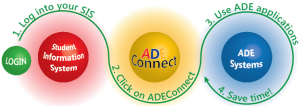
ADEConnect is the Arizona Department of Education solution to allow one login per person for access to multiple applications. It offers seamless integration with existing student information systems.
ADEConnect Steps


  • ADE Application roles are set at the local entity level, where users are known and their application roles identified.
  • User-level system access reporting is available to Entity administrators.
  • Entity administrators at each Parent Entity or Related Organizations provide first-level support for access issues.
  • Finding ADEConnect Entity Admin: To locate the district or charter's ADEConnect Entity Administrator, please follow this link: FindEA.

  • ADE's Step-by-Step Implementation Process: Each time a Parent Entity transitions to ADEConnect, ADE conducts a meticulous step-by-step implementation process to ensure seamless integration.
  • Entity Administrator Training: Entity Administrators receive training via ADEConnect Quick Guides and always have access to ADE support for any assistance they may require.
  • Questions and Support: For any questions related to ADEConnect, we encourage you to reach out to the ADE Support Center at (602) 542-5393. Our dedicated team is here to assist you.
  • Accessing ADEConnect Resources: Access ADEConnect training and additional support materials by logging in to ADEConnect.
  • Additional Help and Support: For further assistance, please visit ADEConnect Help. Again, login to ADEConnect is required for access to these resources.

APLD (ADE Professional Learning and Development)

ADE Professional Learning & Development

APLD (ADE Professional Learning and Development)

The Arizona Department of Education is committed to providing exceptional professional learning opportunities for educators across all parts of a school system. No matter the role your hold in your school community, we have a professional learning opportunity for you. Browse the upcoming events for training opportunities, workshops, conferences, and more!

Updates Effective 08/12/2025

  • Update Learner Profile during Checkout
    • At the bottom of the checkout page, you will find a link to update your profile information. This opens the learner profile in a new tab.
    • A new field called "Local Education Agency" is available in the Learner Profile. You can now update this information to reflect which LEA(s) you are associated with.
  • Changes for Archived Course Sections
    • Learners who are actively enrolled (have not completed work) in a course section will be automatically dropped upon that section's archival.
    • NOTE: If you received notifications about being dropped from an archived course for which you expected to receive completion credit, contact your instructor or the APLD team for support. 
  • Login Page Changes
    • On the Login page, a new "support link" has been added. The link will direct you to this webpage, where you can find APLD support and other reference materials 
  • Course Catalog Updates
    • The "Register" button within the course catalog has been updated. The button now says "Add to Cart" instead of "Register"

Frequently Asked Questions

Below are some frequently asked questions regarding the new APLD event management system (EMS) and other information

  • Updates Effective 07/01/2025

    • Update Learner Profile during Checkout
      • At the bottom of the checkout page, you will find a link to update your profile information. This opens the learner profile in a new tab.
      • A new field called "Local Education Agency" is available in the Learner Profile. You can now update this information to reflect which LEA(s) you are associated with.
    • Changes for Archived Course Sections
      • Learners who are enrolled in a course section will be automatically dropped upon that section's archival.
      • NOTE: if in the next days you receive several notifications about being dropped from archived courses, please disregard the notifications. 
  • Updates Effective 05/27/2025

    • Learners can now edit their phone number, address, and related fields in their profile. However, first name, last name, and email address can only be updated through ADEConnect. For help, see: How to Change your Email address and How to Update your Name and Password.
    • Emails sent when a purchase order is rejected will now include the reason for denial.
    • Invoices will now display the last four digits of the credit card used. 

  • Login to ADE Connect first - https://adeconnect.azed.gov/
  • Select Applications  / View Applications
  • Select ADE Professional Learning and Development (APLD)

  • Log in to https://adeconnect.azed.gov/
  • Select APLD
  • Select Learners | Nominate
  • Select the Choose a Learner field to add multiple learners
    • Hold Ctrl to select multiple learners from the drop down
  • Select the Add new Learner button to search for a specific learner
  • Select Nominate on the course to enroll learners
  • Enter the payment method to complete the course registration

  • To enroll a learner in an event or course, follow the steps outlined under "How do I enroll a user(s) to an event?"
  • If you cannot find the learner after you follow the Choose a Learner step, it may be for two reasons:
    • They need to create an account in ADE Connect first
    • After they create the account, the learner needs to login to APLD for the first time in order to activate their APLD account. 
  • In order to find the learner in APLD, they need to login to APLD for a first time to activate their account. After they do, you will be able to use the Nominate feature.

  • Credit Cards (VISA/Mastercard) Purchase Order (PO), Internal Transfer, ACH 

  • Purchase Order (PO) - A valid PO is required. The following criteria should be noted on the PO. Requisitions are not allowed.
    • Event Name
    • Event Dates (if blanket PO, specify fiscal year)
    • Participant names (if blanket PO, total number of participants)
    • Event cost
    • Signature of Approval
  • Registration must match PO detail. If anything is missing Accounting will reject the registration and the participant will need to re-register for the event.
  • Invoices will be provided upon approved PO submission.

  • Transfer - A transfer of funds between two state government agencies. A transfer of funds form is required at time of registration from both the paying and receiving agency. 

  • Log in to https://adeconnect.azed.gov/
  • Select APLD
  • Select Withdraw from Course
  • Select the Request new drop
  • Select the course you wish to withdraw from and choose a reason for the request
  • Select Save to submit the request

  • Cancellation Policy - A full refund may be provided to those that cancel on or before the event start date. Requests submitted after the event start date will be reviewed on a case-by-case basis.

  • Refund Requests - Refunds are allowed up to the day of the event. The event coordinator must verify that the participant did not attend the course or event to be considered for a full refund. Allow 15 business days for processing.

  • Substitutions - The substituted participant must still register for the event and provide an approved PO. The PO must indicate the new substituted participants name or may not exceed the blanket PO number of participants. If payment was received for the original participant, then this will be refunded and a new payment for the substituted participant will be due. Payments from the original participant may not be transferred to the substituted participant.

  • Make sure that you are using VISA/Master Card for your payments. If you are using a VISA/Master Card and your payment is still being declined, call your bank for support. Alternatively, you can submit payments via a Purchase Order, Internal Transfer, or ACH.

Information Technology

Information Technology Banner

Information Technology

Vision: to create a transparent, sustainable IT department that includes efficient, repeatable, and measured practices that can be sustainable over time. 

Mission: 

  • Provide a consistent service to our internal and external customers. 
  • Take fiscal responsibility for managing state, federal, and grant funds. 
  • Create a standard work culture, setting direction, and expectations for new and current IT staff. 
  • Create a comprehensive approach to Vulnerability Management.

ADE Help Desk

ADE Help Desk

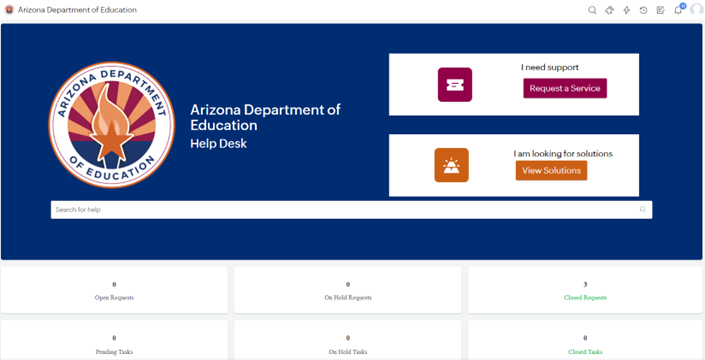
The Arizona Department of Education (ADE) Help Desk system is designed to provide efficient and transparent support for various technical and operational needs. This ticketing system allows you to submit requests and track their status, ensuring that inquiries are addressed promptly and effectively. Whether you need assistance with school finance, the Empowerment Scholarship Account (ESA) program, ADE technology solutions, or other ADE services, the Help Desk system streamlines communication and enhances the overall user experience. 

ADE Help Desk

 How to get access to the ADE Help Desk 

After you create your ADEConnect account and try to access the Helpdesk (for the first time), you’ll be prompted to create a Helpdesk account.
There are three ways to register an ADEConnect account.

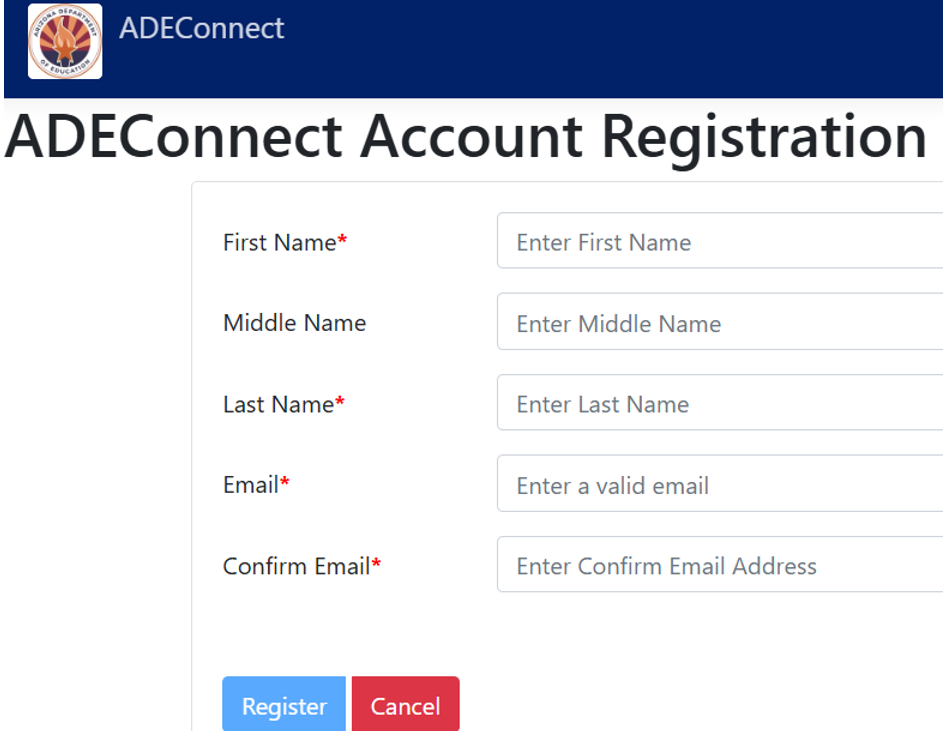
  1. Self Registration:  When an ADEConnect account is created via self-registration link.
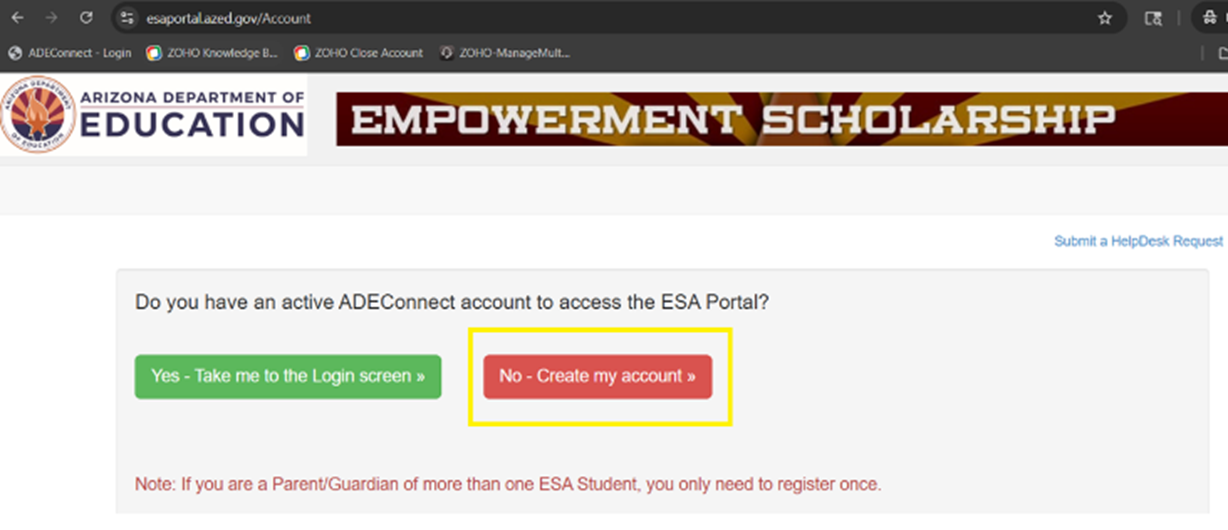
  2. ESA:  When an ESA (ADEConnect) account is created.
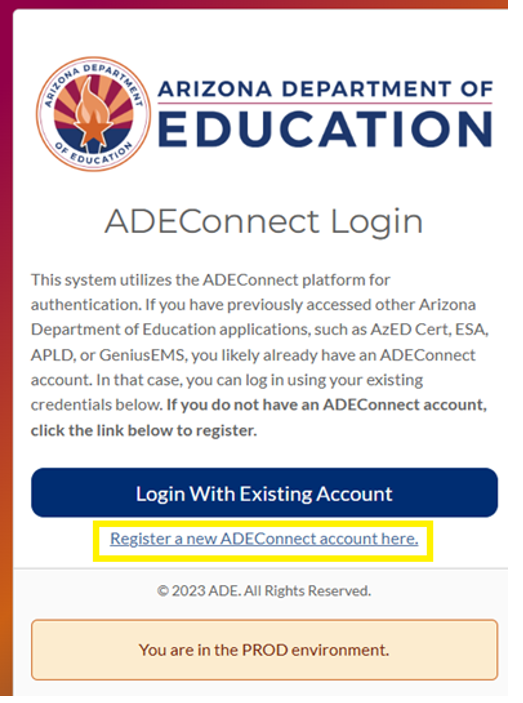
  3. Certification: When a Certification (ADEConnect) account is created.


Option 1:
Self Registration

ADE Connect: When an ADEConnect account is created.
URL: https://adeconnect.azed.gov/Account/SelfRegistration/General


Guide01

Option 2:

When an ESA (ADEConnect) account is created.
URL: https://esaportal.azed.gov/Account


Guide02

Option 3:

When a Certification (ADEConnect) account is created.
URL: https://mycert.azed.gov/launch/account

Guide04
  1.  

 How to activate a Help Desk account 

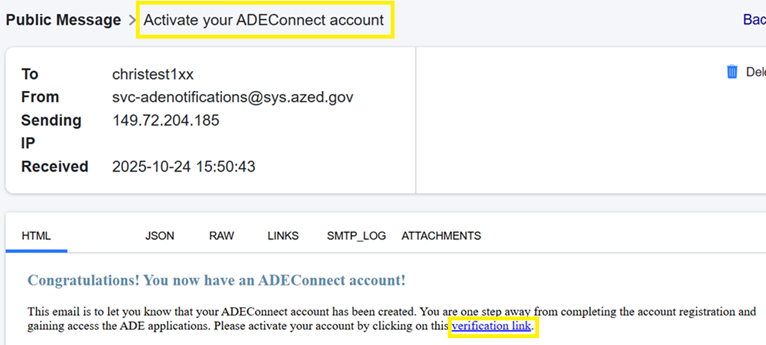
After your ADEConnect account is activated (using any of the options specified above), an email is sent with instructions to “Activate your ADEConnect account”.

Click the "Verification Link" in the email


Guide05

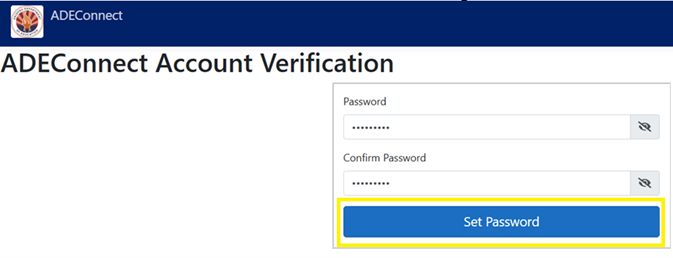
Clicking the “verification link” loads a page where you can submit a password.


Guide06

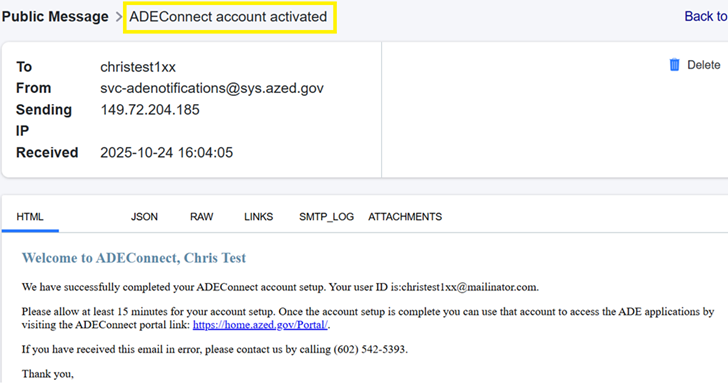
Afterwards, you'll receive an email confirming account activation.
 

Guide07
  •  

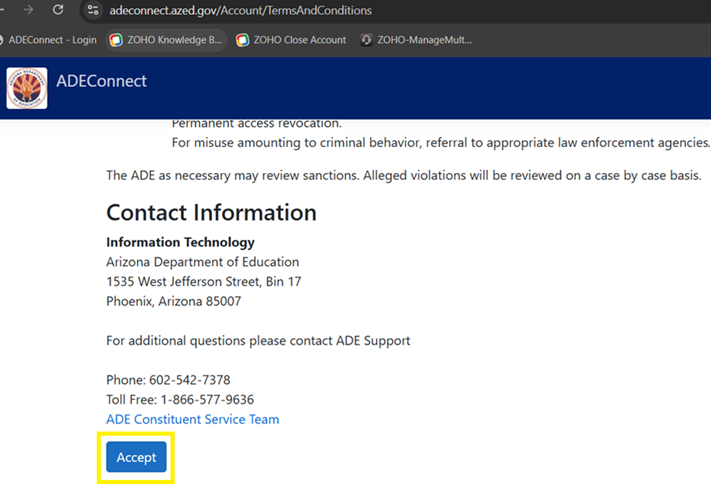
Now... login ADEConnect and “Accept” the Use Policy.


Guide08
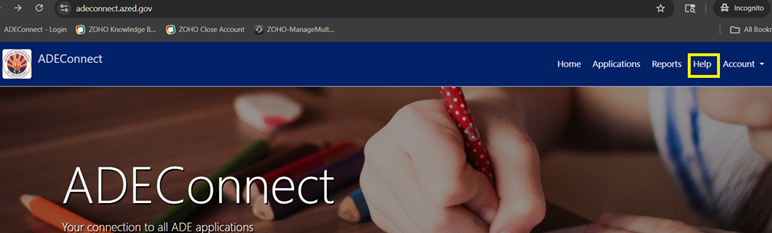
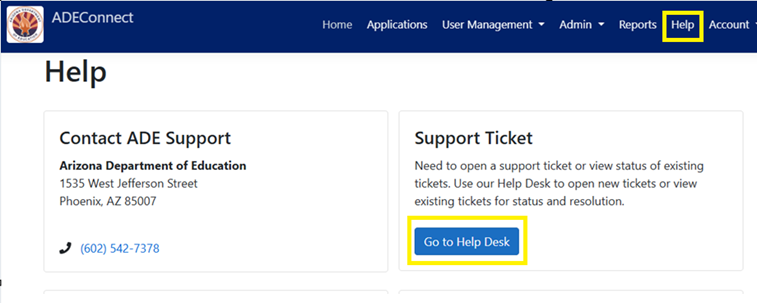
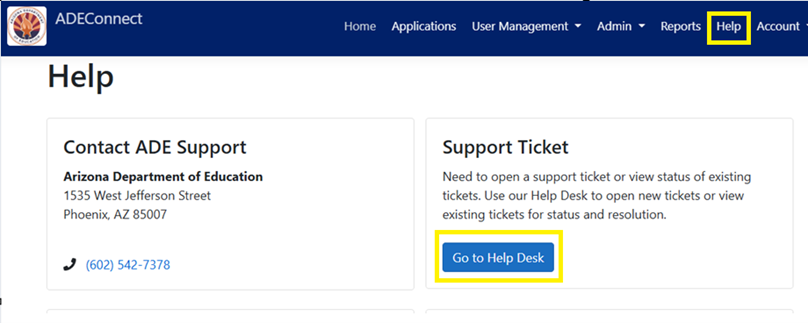
  • After you accept the “Use Policy”... click the “Help” link (in ADECOnnect) then: “Go to Help Desk”


Guide09

The first time you click the link... you'll be prompted to "join organization".

IMPORTANT
If you use a mobile device, you cannot activate your Help Desk account through a mobile browser. Activation requires the Help Desk Mobile App to be installed first. If you don't want to download the app, you may access the Help Desk using a supported web browser on a desktop or laptop computer.
Using a mobile device requires using the Help Desk App.

Android: https://play.google.com/store/search?q=servicedesk%20cloud&c=apps&hl=en_IN&gl=US
Apple: https://apps.apple.com/us/app/servicedesk-plus-cloud/id496792710

Supported computer browsers for ZOHO ServiceDesk Plus Cloud are:
• Google Chrome (latest version)
• Mozilla Firefox (latest version)
• Microsoft Edge (latest version)
**Not supported on tablets or mobile phones.
Instead, you must use the Help Desk App.

Guide10

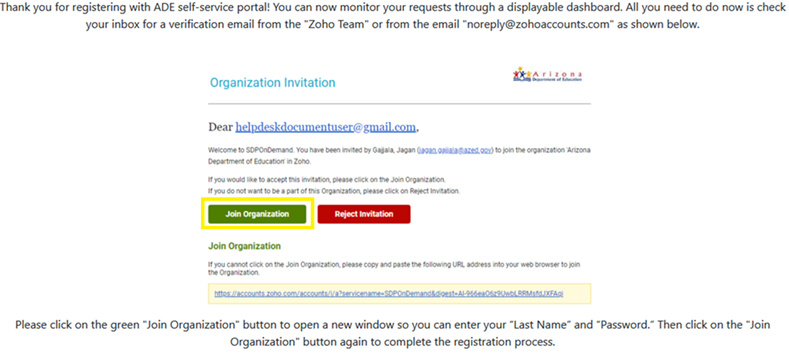
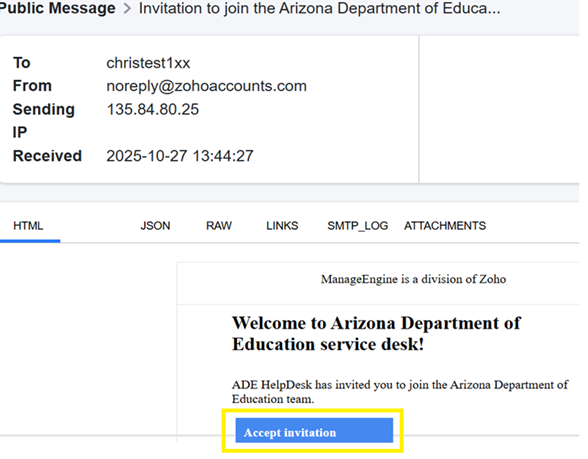
Next, an email will be sent (from the “Zoho Team”) inviting you to “join the Arizona Department of Education”.
When you find it, click "Accept invitation".


Guide11

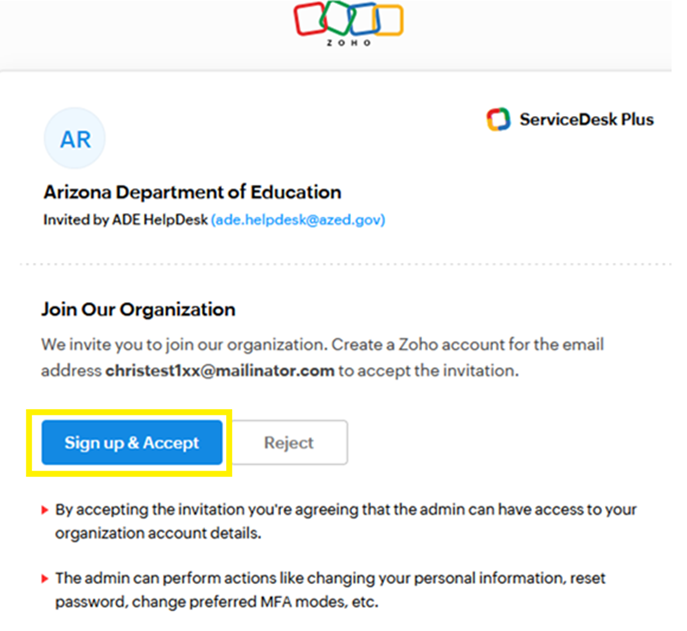
In the page that loads, click "Sign up & Accept"


Guide12

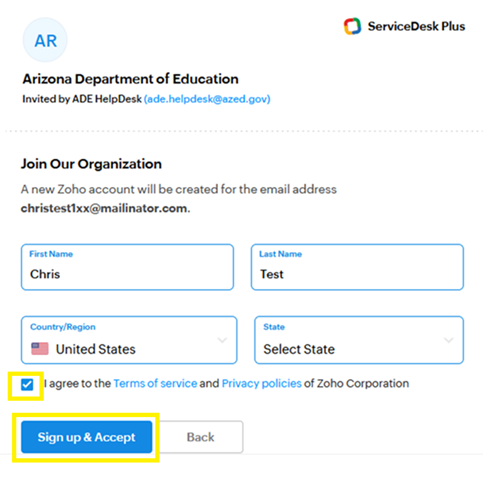
Accept the invitation... and click "Sign up & Accept" again.


Guide13

At this point, the HelpDesk should load.


Guide14

 How do I re-access the Help Desk

After you create a Helpdesk account, you can re-access the Helpdesk by using the following (bookmarkable) link: 
https://helpdeskexternal.azed.gov

Or, in ADEConnect – you can access the Helpdesk by clicking the “Help” link – then “Go to Help Desk”


Guide15

 How to create Help Desk tickets 

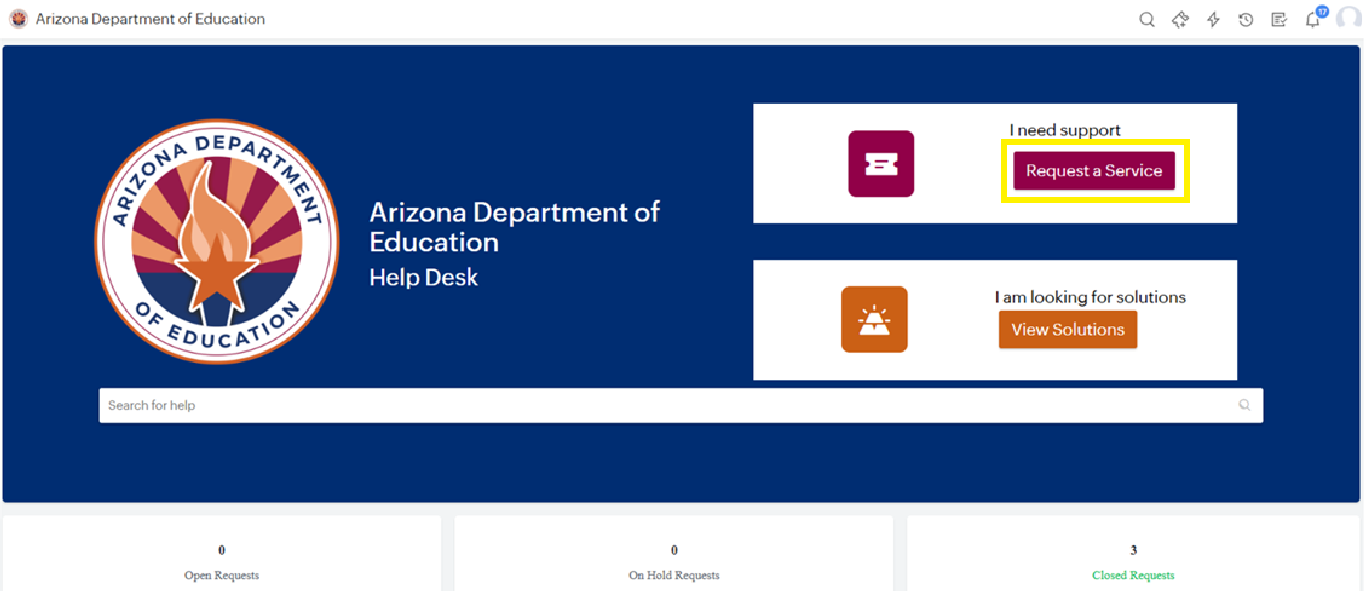
After you log in to Helpdesk, create a Helpdesk ticket by clicking “Request a service”.


Guide18

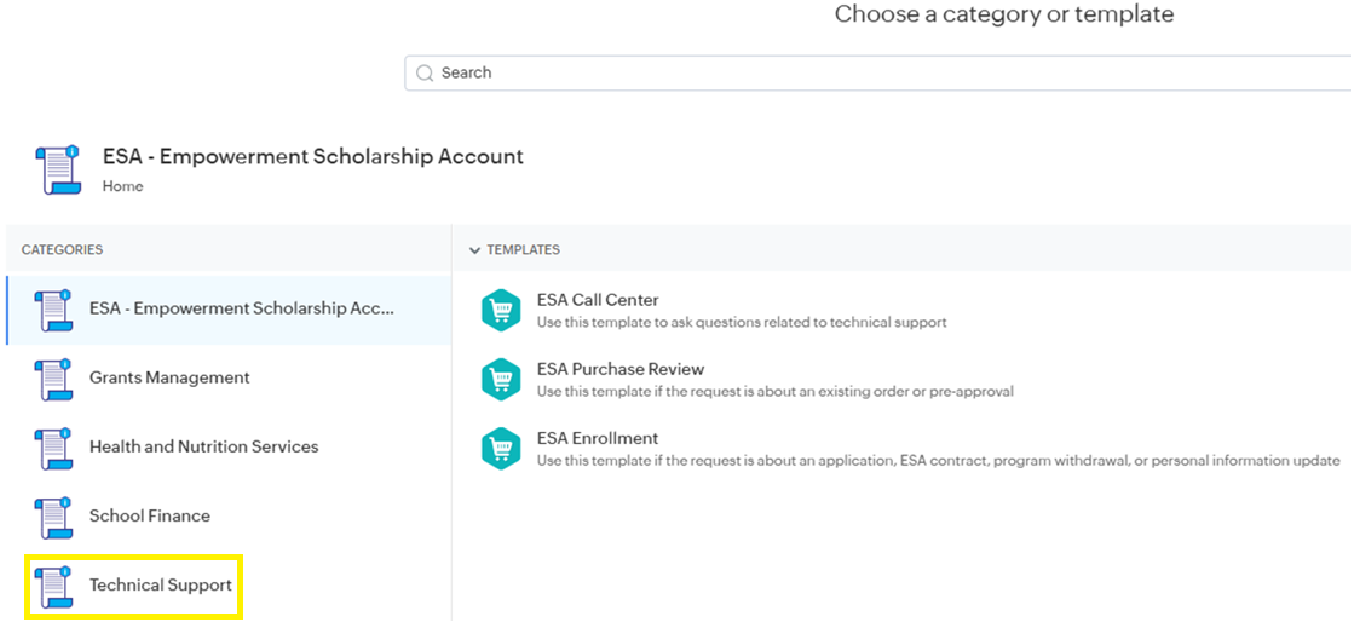
You'll see Categories and Templates for 'ESA', 'Grants Management', 'School Finance', etc...
For anything else, select 'Technical Support'.


Guide19

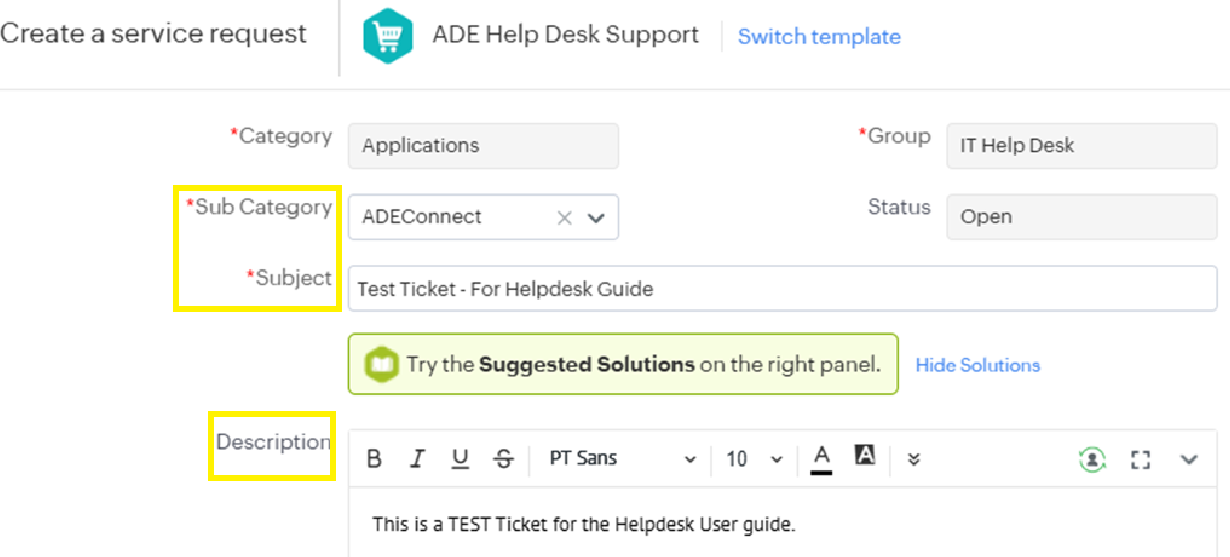
Sekect a template and fill in the required fields then attach a screenshot (if desired) and click “Add Request”.


Guide20

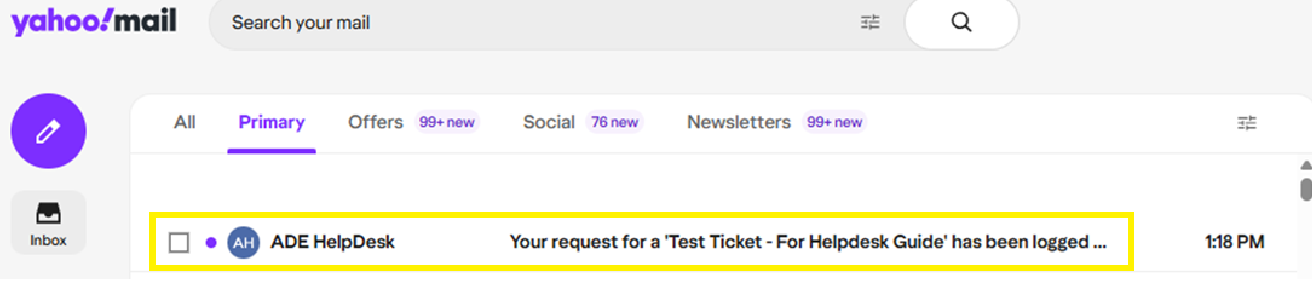
You'll receive an email letting you know the ticket was created.


Guide21


 How to update tickets

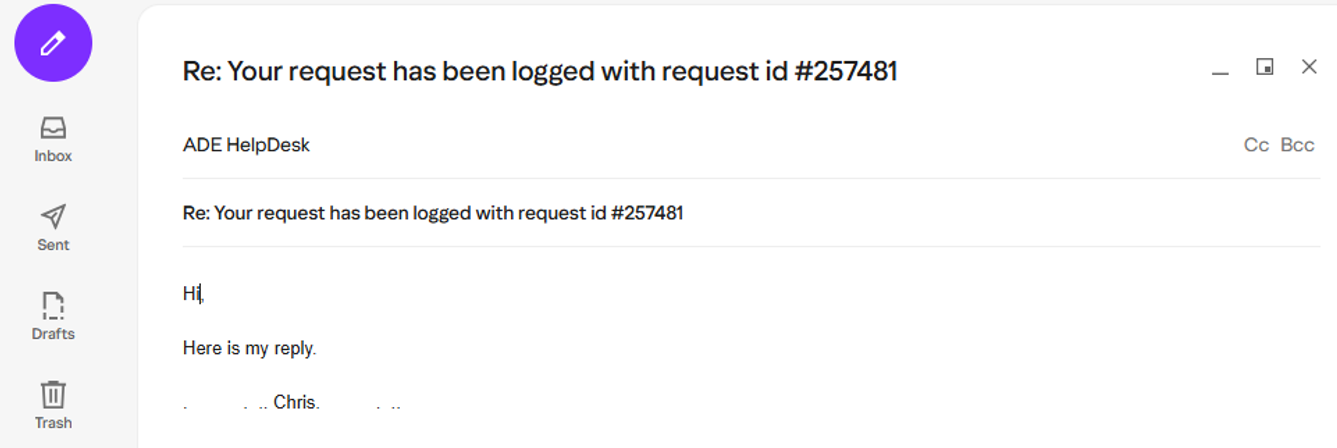
To respond to tickets, check your email and find the most recent response, then reply to it.


Guide22

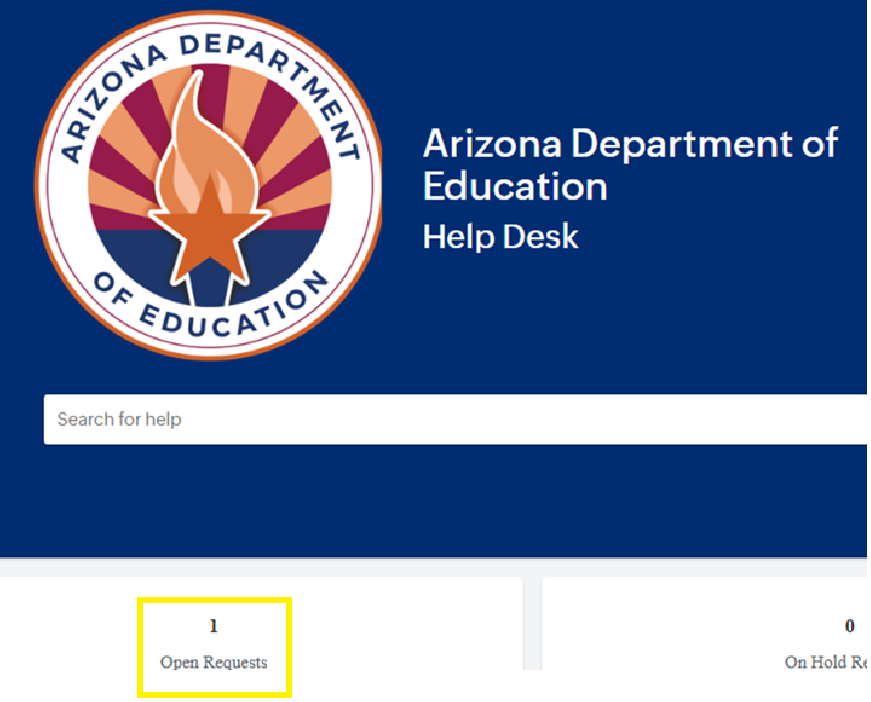
Also, in the Helpdesk, you can view/update tickets via “Open Requests”


Guide23

 Troubleshooting: What if I try to log in the Helpdesk and see a message stating: “User doesn’t exist”? 

In this case, please contact the ADE Technical Support (at 602-542-2222) so they can help resolve the issue.
ADE Technical Support

 Troubleshooting:  What if my email address changes… How do I update it in the Helpdesk? 

This a two step process:
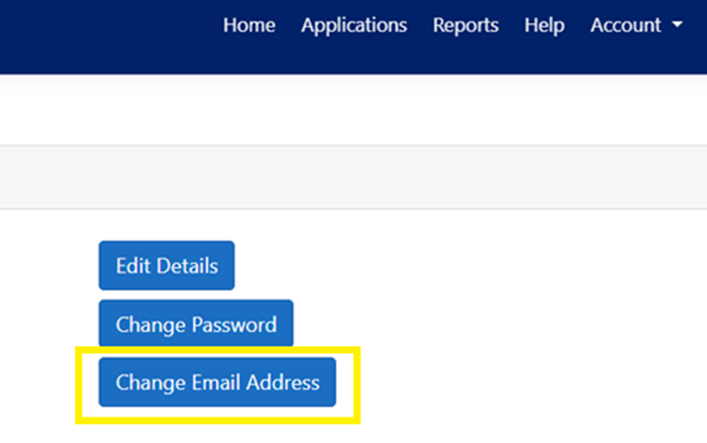
1. If you are able to log in ADEConnect successfully – and your email address will change in the future, you can update it in ADEConnect by going to “Account > My Profile > Change Email Address”


Guide24

If the email address does not get updated, contact the ADE ServiceDesk team (602-542-2222) ADE Technical Support so they can help resolve the situation.

2. After your email address is updated in ADEConnect, the only way to update it in HelpDesk is by requesting ADE Technical Support (602-542-2222). Either submit a ticket, or call.

 Troubleshooting:  What if I forget my password? 

After you log in ADEConnect, you can access the Helpdesk by clicking the “Help” link – then “Go to Help Desk”.


Guide25
  •  

If you are unable to login to ADEConnect, then you can try to reset your ADEConnect password (but only if you normally use a password to login).
The “Reset Password” link is here:
https://adeconnectservice.azed.gov/PasswordChange/RequestPassword.aspx

If you receive a message like the following:


The error message means your account is associated with another Zoho organization. Before you can access the ADE Zoho instance, you must first remove the existing Zoho registration from your account.

To do this, go to: https://accounts.zoho.com → Login to Account → Settings → Close Account

After the conflicting Zoho registration has been removed, you can access the ADE Help Desk portal at https://helpdeskexternal.azed.gov and complete the ADE registration process.


Mobile Device Users:

Accessing the portal through a mobile web browser is not supported. If you are using a mobile device, please install and use the supported ServiceDesk Plus application:

Android:


https://play.google.com/store/search?q=servicedesk%20cloud&c=apps&hl=en_IN&gl=US

Apple iOS:


https://apps.apple.com/us/app/saas-helpdesk-servicedesk-plus/id496792710


After completing the steps above, you should be able to successfully register for and access the ADE Help Desk portal.

If you are still unable to register or access your account, please contact ADE Technical Support at 602-542-2222 to provide any error messages, screenshots, or details about the issue you are experiencing so our support team can assist with troubleshooting and resolution.

We're excited to introduce Help Solutions, a new self-service feature designed to help you resolve common issues quickly and efficiently.

When creating a Help ticket, the system will automatically suggest relevant solutions based on the keywords entered in your request. Before submitting your ticket, please take a moment to review these recommended solutions as they may provide the answer you need without waiting for support assistance.

Benefits of Help Solutions

·        Faster resolution to common issues

·        Self-service guidance available within the ticketing process

·        Reduced wait times for support requests

·        Easy access to helpful troubleshooting steps


What's Next?

Our Suggested Solution library is currently limited, but we're actively expanding it. Over time, you'll see more solutions added to help you find answers faster and empower you to resolve issues on your own.

Arizona Broadband Expansion Fund

Arizona Broadband Expansion Fund

Arizona’s vision is for schools statewide to have scalable, affordable and reliable internet access. With access to high-speed broadband, students can take remote classes and receive digital learning opportunities that they never knew existed. The Erate “Special Construction” projects enable educators to dramatically enhance their professional development capabilities and communities will be transformed by the cultural and economic benefits of simply being connected to the Internet (A.R.S 15-249.07).


Semi-Annual Reporting

Arizona Broadband for Education Initiative 2024 Q2 Update

Arizona Broadband for Education Initiative 2024 Q4 Update

Arizona Broadband for Education Initiative 2025 Q2 Update

Arizona Broadband for Education Initiative 2025 Q4 Update

Arizona Broadband for Education Initiative 2026 Q2 Update

ADE Broadband Special Construction Tools

Broadband Standard Work

State Match Funding Request Form

Example of an RFP Bid evaluation sheet

E-Rate Resources

The E-Rate Program is a national program offered by the Universal Service Administrative Company (USAC), which administers the Universal Service Fund on behalf of the FCC (Federal Communications Commission). As an independent not-for-profit under the guidance of the FCC, USAC's mission is to bring high-speed Internet (broadband) to areas of the country underserved by existing utilities.

The Schools and Libraries (E-Rate) Program helps schools and libraries connect to broadband Internet and voice services at discounted rates.

A.R.S 15-1261

A.R.S 18-402

A.R.S. 15-249.07

USAC Application Process Overview

USAC's Schools and Libraries Program "Before You Begin" webpage provides thorough documentation of the application process. To start, you might want to check out their application process flowchart.

E-Rate Application Process Flow Chart

Acquire an EPC Login

An E-Rate Productivity Center (EPC) account is required to apply for the program. If you do not already have an account, contact Arizona's E-rate Coordinator at [email protected].

Filling Out Form 470

  • Category 1 and Category 2 services can be submitted on the same 470.  You can also submit multiple 470s.
  • Dates and spellings must be consistent across applications and the FRN. Many applications are rejected due to simple, easy to fix, errors. Double-check all applications and forms before filing.
  • Multi-year contracts, up to 5 years, makes the application process more streamlined.
  • New FCC Form 470 will be only online.

E-Rate Forms and Guides

Filling Out Form 471

  • ALL applicants must file their FCC Form 471 online.
  • Item 21 is embedded in the FCC Form 471 beginning 2015.
  • Discounts are calculated for the organization as a whole.
  • Rural status is determined at the district/system level and only if more than 50% of schools are rural.
  • Do not request more than $170 per student over a 5 year term (it will save you PIA questions later)
  • Include a full list of all Item 21 items (it will save questions later)

E-Rate Forms and Guides

Following Up

On the day the FCDLs are mailed, you can check to see if you have a commitment by using USAC's Automated Search of Commitments tool.

E-Rate Requirements In The Use Of A State Master Purchase Agreement

Artificial Intelligence

Artificial Intelligence

Check out the U.S. Department of Education Office of Educational Technology’s new policy report, Artificial Intelligence and the Future of Teaching and Learning: Insights and Recommendations

The U.S. Department of Education Office of Educational Technology’s new policy report, Artificial Intelligence and the Future of Teaching and Learning: Insights and Recommendations, addresses the clear need for sharing knowledge, engaging educators, and refining technology plans and policies for artificial intelligence (AI) use in education. The report describes AI as a rapidly-advancing set of technologies for recognizing patterns in data and automating actions, and guides educators in understanding what these emerging technologies can do to advance educational goals—while evaluating and limiting key risks. 

AzEDS Vendor Meeting 5/16/2023 and a change with Unaccompanied Youth

AzEDS Vendor Meeting 5/16/2023 and a change with Unaccompanied Youth

Fri, Jun 9, 2023

On May 16, 2023, AzEDS IT and vendors met to discuss updates for fiscal years 2023 and 2024. An emphasis was placed on the CTED Data Updates for FY 2023. Since the meeting concluded, as of May 25, 2023, there is an important update regarding the use/implementation for Unaccompanied Youth need. Beginning in FY2024, this need will no longer be required to have a Primary Night-Time Residence (PNTR) submitted with the need. The need will be required to have a homeless need for every date of the Unaccompanied Youth need. The Homeless need will store the PNTR for the Unaccompanied Youth need. In summary, an Unaccompnied Youth need will be concurrent with a Homelss need. A Homeless need may exist with or without an Unaccompanied Youth need. The update on Unaccompanied Youth is displayed on Slide 57 of the attached presentation document and was added May 25, 2023. The meeting may be visited at https://youtu.be/mHdUftXBMvU

Cybersecurity Tools and Resources

Cybersecurity Tools and Resources

This page is updated regularly with links and access to resources like tools, procedures and information.

Local education agencies (LEAs) across Arizona have limited resources to respond to continuous cyber threats from malicious actors. According to Cybersecurity & Infrastructure Security Agency's (CISA), these are the most impactful security measures school district can implement to strenthen their security posture: 

 Cyber Alerts

Information and resources provided on this page are "as is" and without any warranties or guarantees. Reference herein to any specific commercial products, process, or service by trade name, trademark, manufacturer, or otherwise, does not constitute or imply its endorsement, recommendation, or favoring by the Arizona Department of Education, and this guidance shall not be used for advertising or product endorsement purposes. 

AzEDS Vendor Meeting 2/14/2023

AzEDS Vendor Meeting 2/14/2023

On Februrary 14, 2023, AzEDS IT and vendors met to discuss updates for FYs 2023 and 2024. An emphasis was placed on the Program Evaluation Model which is the structure being used to collect the 21st Century Community Learning Center Teacher Survey data and the Firearms Data Collection. The Use Case for the 9.0 API was updated on ADE's website to include these items. Sample JSONs are also attached to this post respective to the 21st CCLC Teacher Survey data. The meeting may be viewed at https://youtu.be/m9odvhFEM4Q.

AzEDS Vendor Meeting 11/29/2022

AzEDS Vendor Meeting 11/29/2022

Tue, Dec 6, 2022

Tuesday, November 29, 2022 was the FY23 Q2 meeting with AzEDS Vendors and AzEDS IT. The recorded meeting can be viewed at https://youtu.be/JglEHaiiCRU.

Follow-up to the meeting: Discipline data will be collected for SPED students and 21st CCLC students. Additionally, Firearms data collection which is being included in the discipline framework will be collected for all students. Non-firearms data for non-SPED and non-21st CCLC students is not being requested by ADE. If an LEA chooses to submit this data, it will not be rejected. Vendors should provide guidance on data submissions if the LEAs wether or not they choose to submit non-Firearms data for all students.